Welcome!
This guide will help you use the service and purchase an account correctly.
We use PayPal as the example. The order of actions is the same for other wallets and exchanges.
Preparation
Install the PayPal app
Download the PayPal app from Google Play to your emulator or smartphone.
Choose a product
Find the account you need
Return to wallet-shop.com and find the product you need. If desired, select a specific country or add “Extended verification,” then click “Buy.”
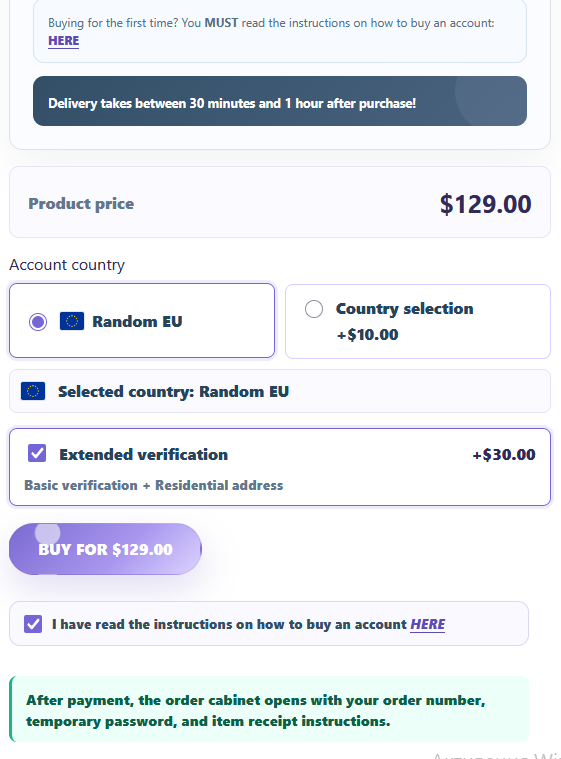
Payment
Create the payment request
On the “Request payment” page, choose a convenient payment method. If needed, select where the order should also be delivered: Telegram or email. Click “Create payment” and follow the instructions.
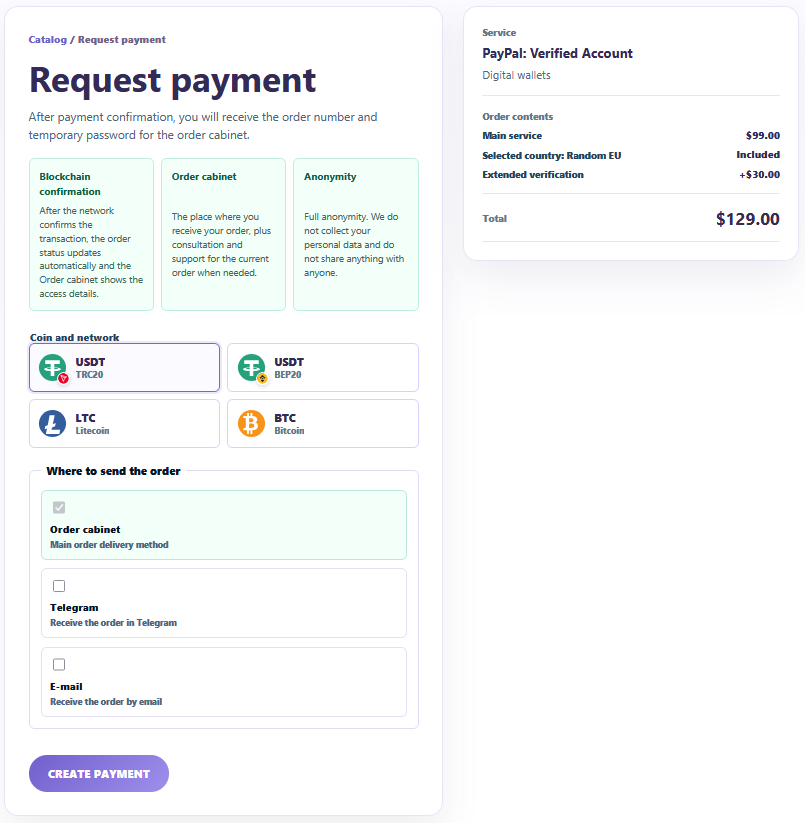
After payment
Receive your login details
After payment confirmation, the system displays the order number and temporary password for the “Order cabinet.” Save these details and click “Get order.”
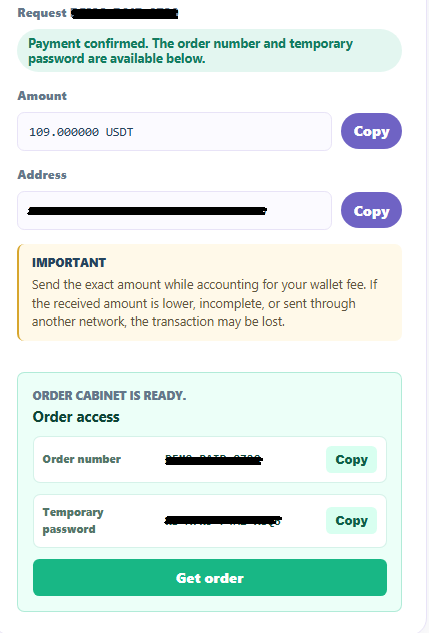
Order cabinet
Sign in and check the status
Enter the order number and temporary password. After signing in, the “Order cabinet” shows the status, order contents, and available actions.
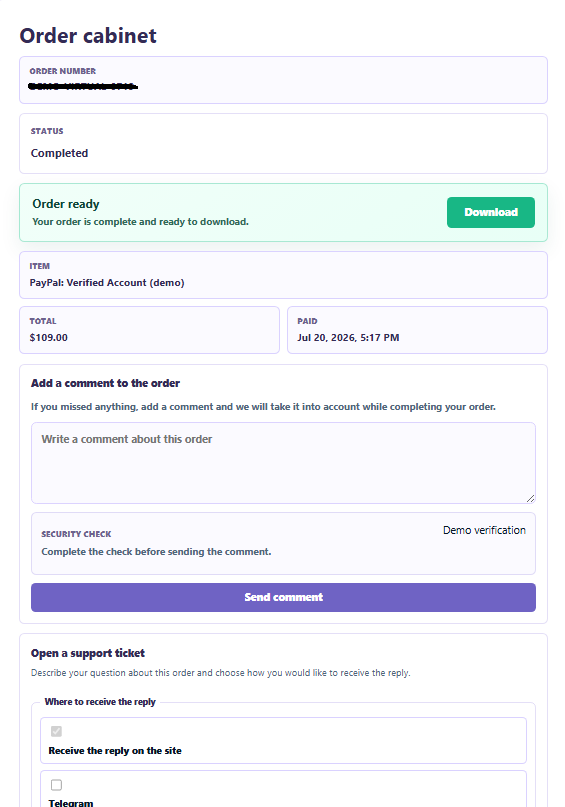
Receive the order
Download the completed order
Once the order is complete and its file appears in the cabinet, click “Download.”
First sign-in
Open the purchased account
Return to your emulator or smartphone, open the PayPal app, and start signing in with the details from the downloaded order.
Sign-in verification
Proceed to the 2FA code
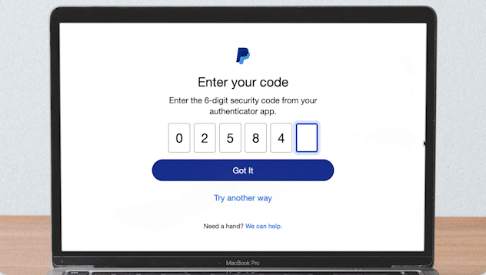
After you enter the account details, PayPal requests a six-digit two-factor authentication code — 2FA.
Two-factor authentication
Obtain a temporary 2FA code
Open the downloaded order and find the 2FA-key (/page/2fa) field, for example: 335OTV3E6P...... This is the two-factor authentication key.
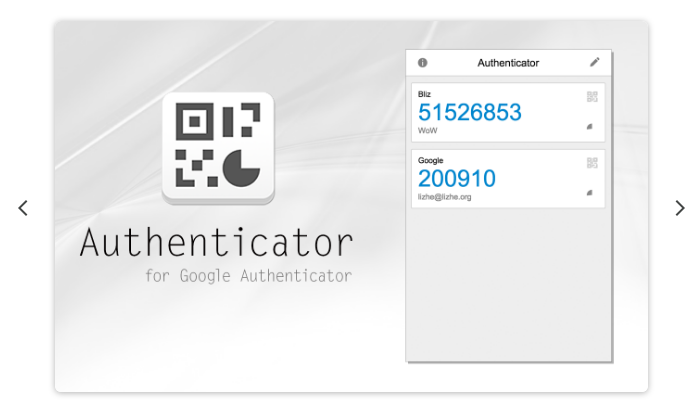
Copy the key and add it to a two-factor authentication app, such as Google Authenticator.
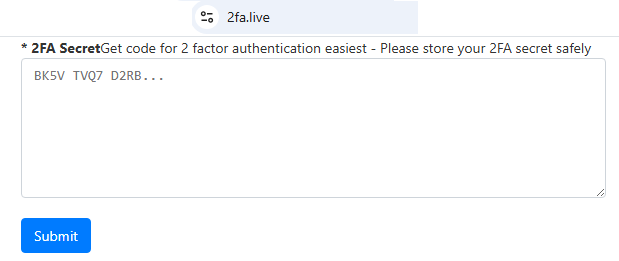
You can also open 2fa.live, paste the 2FA key into the upper field, click Submit, and obtain a temporary code.
Complete sign-in
Enter the verification code
After obtaining the temporary 2FA code, return to PayPal and enter it in the corresponding field.
Done
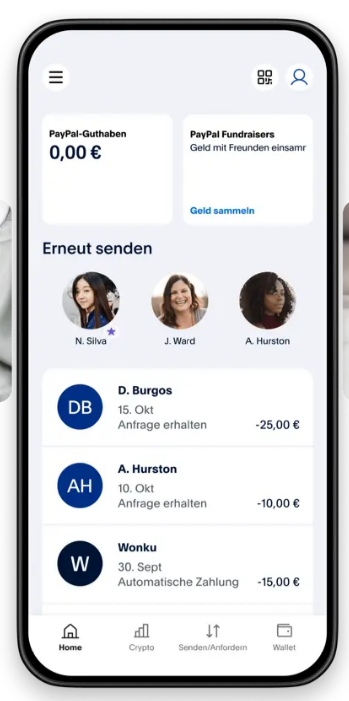
You are signed in
Nothing else needs to be done. Let the account “rest” on your device for 24 hours.
Questions and answers
Frequently asked questions
Can I get my money back if the account is blocked during sign-in?
Yes. To request a refund, create a ticket for your order in the Order cabinet.
Can I get my money back if the account is blocked from receiving or sending payments?
Yes. To request a refund, create a ticket for your order in the “Order cabinet.”
What if the service requests an SMS code or another unavailable verification method?
This is a very unlikely scenario, but it may happen. Take a screenshot of that screen, open the “Order cabinet,” and create a “Problems with order” ticket. A support specialist will explain what to do or help arrange a refund.
Can I replace the account details with my own?
Yes. You can change the phone number, email address, passwords, and other details.
How long do accounts last, and how quickly can they be blocked?
An account’s lifespan depends on how it is used. If you follow the service rules, accounts can last a long time. The final result depends on your transactions and actions performed with the account.